
How to try Smart Prompt
Coming soon to Grid!
Smart Prompt helps you create your own AI powered tools in Grid.
To get started:
- Make sure you are online and have the latest Grid software update
- Opt in to the use of Online AI Tools in Settings – Data Control or within the onboarding page of Text Talker AI beta
- Open the grid set you want to try Smart Prompt with
- Go into Edit mode and Create Cell
- Search for Smart Prompt listed under Online AI Tools
Creating your Smart Prompt
Once you have added a Smart Prompt Command to your grid set, you need to write your prompt. This is an instruction to AI, and you choose its function.
You also choose where you want your responses to appear. You have two options, within Smart Response cells that you can add to your grid, or to the writing area of your grid.
Explore more guidance on creating your own Smart Prompts on the Smartbox Hub.
Try Smart Prompt straight away with Text Talker AI beta
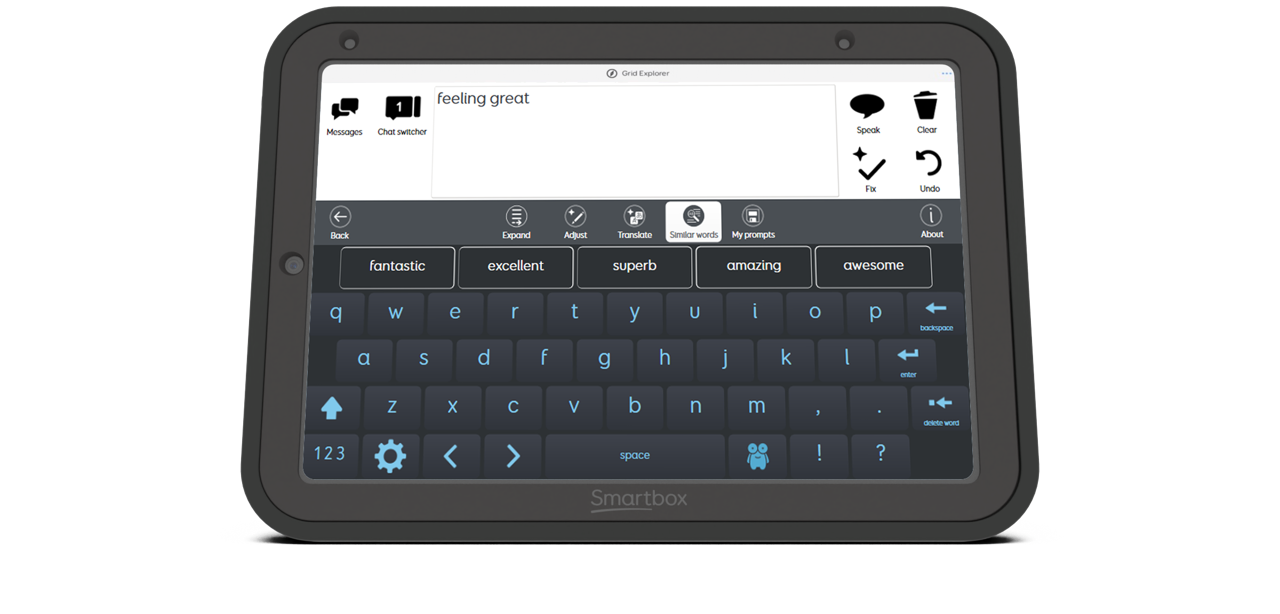
To help you get started, we’ve incorporated an AI toolbar into a new version of Text Talker. Powered by Smart Prompt, you can try a selection of different Smart Prompt functions in a ready made grid set. Expand and adjust text, translate your sentence, find similar words, and create your own prompts.
These examples can all be customised in edit mode to suit you. You can also copy and paste them into other grid sets.
More AI features in Grid
Smart Prompt joins our family of Online AI tools in Grid that have been designed to provide AAC users with greater flexibility and choice in how they communicate.